


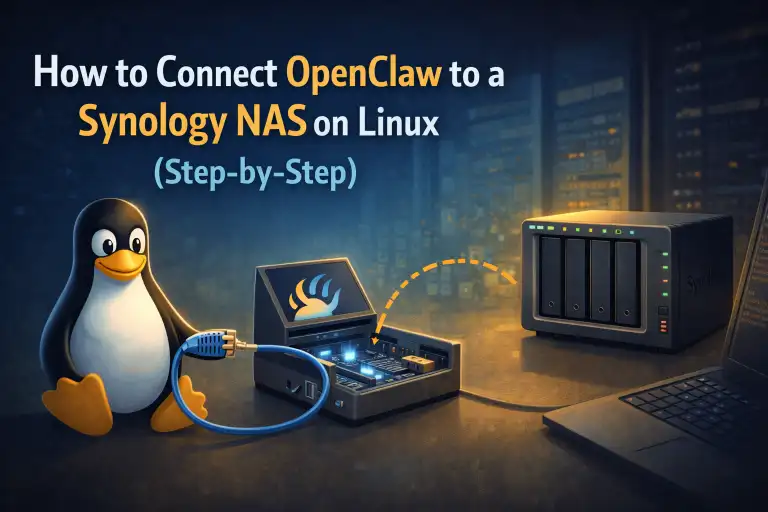
If you run OpenClaw on a Linux machine, connecting it to a Synology NAS is one of the best upgrades you can make. It gives you persistent storage for logs, backups, exports, and project files without keeping everything tied to one local disk.
In this guide, I’ll show you exactly how to mount a Synology share, test access, and make it persistent after reboot.
Why this setup is worth it
- Centralized file storage for assistant workflows
- Cleaner organization for backups, logs, and exports
- Persistence across reboots
- Easier scaling as your automation grows
What you need first
- A Linux machine running OpenClaw
- A Synology NAS on the same network
- A Synology shared folder (example: OpenClaw)
- A Synology user with read/write access to that share
Step 1) Create a local mount point
sudo mkdir -p /mnt/synologyStep 2) Create a credentials file
cat > /home/hero/.smbcredentials_synology <<'EOF'
username=YOUR_SYNOLOGY_USERNAME
password=YOUR_SYNOLOGY_PASSWORD
EOF
chmod 600 /home/hero/.smbcredentials_synology
Step 3) Mount the Synology share manually (first test)
sudo mount -t cifs //192.168.0.2/OpenClaw /mnt/synology -o credentials=/home/hero/.smbcredentials_synology,uid=$(id -u),gid=$(id -g),iocharset=utf8,vers=3.0Then verify:
ls -la /mnt/synologyStep 4) Make it auto-mount at boot
//192.168.0.2/OpenClaw /mnt/synology cifs credentials=/home/hero/.smbcredentials_synology,uid=1000,gid=1000,iocharset=utf8,vers=3.0,x-systemd.automount,_netdev,nofail 0 0Step 5) Create a clean folder layout for OpenClaw
mkdir -p /mnt/synology/OpenClaw/{backups,logs,projects,exports}FAQ
Is AFP better than SMB for Linux?
For most Linux setups today, SMB/CIFS is more practical and better supported than AFP.
Can I mount multiple Synology shares?
Yes. Create additional mount points and add one entry per share.
Will this still work after reboot?
Yes, if your mount configuration is valid and test-mount passes.
External references: Synology Knowledge Center, Ubuntu CIFS setup guide, Samba documentation.
Affiliate Disclosure: This article may contain affiliate links. If you buy through these links, we may earn a commission at no extra cost to you.